A slow office computer does more than waste a few minutes; it quietly trains people to work around bad tools. Good Computer Buying Tips start with one plain truth: an office PC should fit the work, the desk, the support plan, and the person using it every day. Many American businesses overspend on flashy specs while ignoring comfort, ports, warranty coverage, security chips, and repair access. That mistake shows up later, usually when payroll is due, a client file will not open, or a video call freezes before a sales meeting.
Office buying also has a trust problem. Every brand claims speed. Every listing looks polished. Every discount feels urgent. A smarter path is to treat the purchase like a business decision, not a gadget hunt. For more practical business technology planning, resources like smart digital growth support can help teams think beyond the device itself. The right computer should lower friction, protect work, and last long enough to pay for itself without becoming a daily complaint.
Computer Buying Tips That Match the Way Your Team Works
A computer should be chosen around the tasks it must survive on a normal Tuesday, not around the cleanest spec sheet. Office work in the U.S. can mean browser tabs, QuickBooks, spreadsheets, video calls, CRM dashboards, Adobe files, remote desktops, or all of them running before lunch. The tension starts when a company buys one “standard” machine for everyone and pretends every role works the same way.
Why office work computers need role-based choices
Sales staff, bookkeepers, managers, designers, and support teams do not need identical machines. A front-desk employee who runs email, scheduling software, and a browser-based phone system may be fine with a modest laptop. A marketing coordinator editing short videos, managing ad graphics, and joining client calls needs more memory, better cooling, and a sharper display.
This is where office work computers should be grouped by role. A small law office in Ohio might need secure laptops for attorneys, dual-monitor desktops for paralegals, and a basic shared station near the copier. Buying the same model for everyone may feel organized, but it can create hidden waste on both ends: underpowered machines for heavy users and overpriced machines for light users.
The counterintuitive move is not always buying the fastest computer for the busiest employee. Sometimes the better fix is a docking station, a second monitor, or a cleaner software setup. Hardware matters, but workflow decides whether the machine feels fast.
How daily software changes the right specs
Software decides the floor, not the brand logo. A team living inside Google Workspace, Microsoft 365, Slack, Zoom, and a web CRM can often run well on a current midrange processor, 16GB of RAM, and a solid-state drive. A team using CAD, large Excel models, local databases, or design apps needs more room before the system starts fighting back.
Business desktop setup decisions should begin with a list of the programs that must stay open at the same time. That sounds simple, but many offices skip it. They buy from a sale page, then discover the machine chokes when Chrome, Teams, Outlook, antivirus tools, and accounting software all run together.
A good office PC should feel boring in the best way. It opens files, joins calls, wakes from sleep, connects to printers, and keeps pace without drama. If your staff constantly restarts machines to “clear things out,” the purchase was not cheaper. It was delayed frustration.
Pick Hardware That Protects Time, Not Bragging Rights
Spec sheets can trick careful buyers because they reward numbers without context. More cores, brighter screens, larger drives, and bigger model names all sound safer. Yet workplace computer features only matter when they remove a pain point, protect data, or reduce downtime.
Which workplace computer features deserve money first?
Memory comes before glamour for most office buyers. For modern office work, 16GB of RAM is the safer baseline for new Windows or Mac purchases because everyday apps keep getting heavier. A 256GB drive can work for cloud-first teams, but 512GB gives breathing room for offline files, cached data, updates, and local backups.
Processor choice matters, but it should not eat the entire budget. A current Intel Core i5, Core Ultra 5, AMD Ryzen 5, or Apple M-series chip can handle many office roles with ease. Heavy spreadsheet users, creative staff, and data workers may need the next tier, but a receptionist does not need workstation-class power to manage appointments.
Ports deserve more respect. A laptop with too few ports turns into a nest of adapters. For a reliable office PC, check USB-C, HDMI, Ethernet needs, card readers, headset support, and docking options before buying. The cheapest laptop can become expensive once every desk needs extra hubs to do ordinary work.
Why storage, memory, and screens affect morale
A weak display wears people down slowly. Staff may not complain on day one, but poor brightness, cramped resolution, and bad viewing angles make long workdays feel heavier. In offices where employees read contracts, compare spreadsheets, answer tickets, or edit documents, the screen is not decoration. It is the workspace.
Storage has a similar quiet effect. A full drive slows updates, breaks sync tools, and invites messy file habits. A business desktop setup with enough storage helps employees keep local working files without turning the system into a junk drawer. Cloud storage still matters, but local breathing room saves time when internet service drops or files must open during travel.
Here is the uncomfortable truth: the parts employees notice most are not always the parts buyers brag about. A better keyboard, clear webcam, stable Wi-Fi, and fast wake time may improve daily work more than a processor upgrade nobody feels. Office machines win by reducing small annoyances hundreds of times a week.
Build Around Support, Security, and Real Office Conditions
A computer does not live alone after purchase. It joins printers, routers, shared drives, monitors, login rules, antivirus tools, and human habits. That is where cheap buying often turns expensive. The sticker price is only the opening handshake.
Why a reliable office PC needs warranty planning
Warranty coverage should shape the shortlist before the final price comparison. A small business in Texas with no in-house IT cannot treat repairs the same way as a corporate office with spare machines and a help desk. Onsite service, next-business-day repair, accidental damage coverage, and easy parts access can save far more than the discount on a consumer-grade model.
A reliable office PC should come from a line built for business use when uptime matters. Business-class models often offer better service options, longer parts availability, cleaner fleet management, and stronger docking support. They may look less exciting than consumer models, but offices do not need excitement from computers. They need fewer interruptions.
There is also resale and replacement value to consider. Buying a random mix of models makes support harder. Standardizing around two or three approved machine types keeps chargers, docks, spare parts, and troubleshooting cleaner. That kind of order feels boring until a laptop fails before a client deadline.
How security features protect everyday work
Security should not be treated as an IT luxury. Even a five-person office handles payroll records, client emails, invoices, passwords, contracts, and tax files. Device security starts with hardware that supports modern encryption, secure sign-in, firmware updates, and remote management.
Workplace computer features such as TPM support, biometric login, automatic updates, and business-grade operating systems help reduce avoidable risk. A lost laptop without strong encryption can become a business problem fast. A machine that cannot receive updates for long will age into a security gap before the hardware looks old.
Energy use also belongs in the buying conversation. Desktops, monitors, and always-on office devices add to monthly costs across the year. ENERGY STAR guidance for computers can help buyers compare efficiency without guessing, especially when replacing several machines at once through the ENERGY STAR certified products program. Lower power draw will not fix a bad purchase, but it can make a good fleet cheaper to run.
Make the Purchase Fit the Desk, Budget, and Next Three Years
The best machine on paper can still be wrong for the office. Space, noise, meeting habits, travel, shared desks, and remote work all shape the final call. A laptop may be flexible, but a desktop can offer better value and easier repair. The right answer depends on how the person works when nobody is watching.
How business desktop setup choices affect productivity
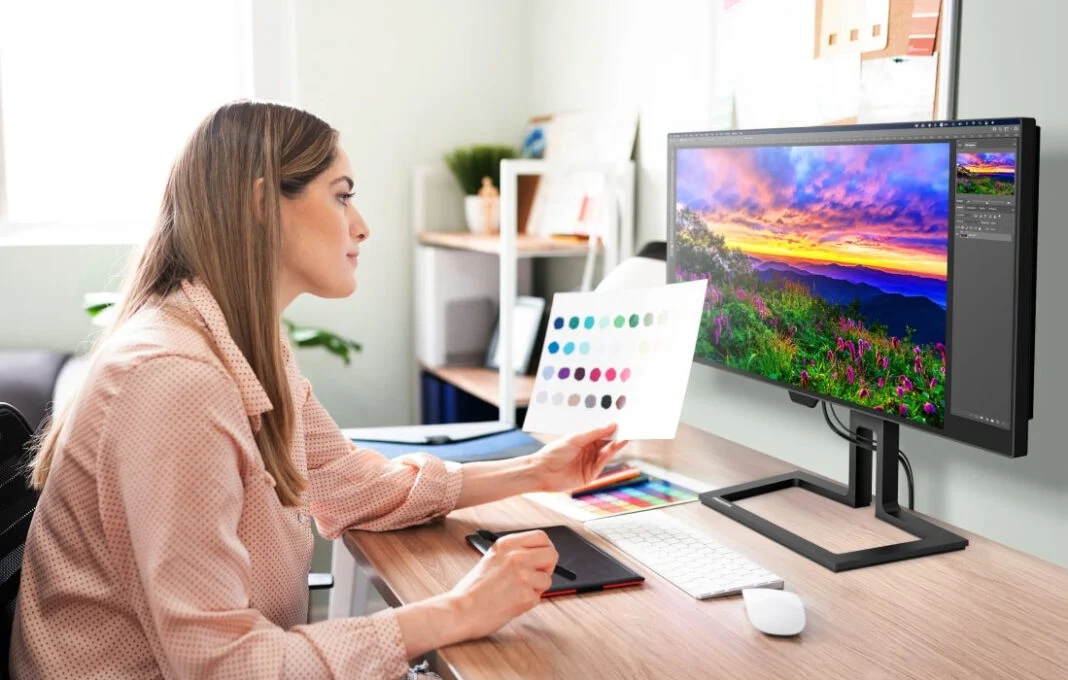
A strong business desktop setup often beats an expensive laptop for employees who sit at one desk all day. A desktop can support larger monitors, better cooling, full-size keyboards, wired internet, and easier upgrades. For accounting, operations, admin, and customer support roles, that setup can feel faster because the whole workstation is built for focus.
Laptops make more sense for hybrid workers, managers who move between offices, sales teams, and staff who need continuity during travel. The mistake is buying laptops for everyone because they seem modern. A laptop used closed on a desk all year is often a costly desktop with a battery nobody needed.
Monitors deserve their own line in the budget. Two midrange monitors can improve daily work more than a premium laptop screen trapped at 14 inches. A medical billing office in Florida, for example, may get more value from dual displays and reliable wired keyboards than from ultrathin machines that look great in a catalog.
What total cost should include before checkout
The real price includes accessories, setup labor, software licenses, security tools, backups, warranties, docks, monitors, disposal, and staff downtime during migration. A computer that costs $150 less can lose that saving during the first support call. Cheap becomes expensive when nobody counts the after-purchase work.
Office work computers should also be bought with a replacement rhythm. Many businesses do better with a three- to five-year cycle, depending on workload and warranty terms. Waiting until every machine is failing creates rushed decisions and uneven spending. Replacing a few machines each year keeps cash flow steadier and avoids panic buying.
One practical move is to create a small internal standard. List approved specs, approved brands, warranty rules, screen sizes, and required accessories. Add links to your own guides, such as a small business budgeting guide and an office productivity software checklist, so future purchases stay consistent. The goal is not perfection. The goal is fewer bad surprises.
Conclusion
Office computers should not be chosen by excitement, fear, or whatever discount banner appears first. They should be chosen by work patterns, support needs, security demands, and the desk where the machine will spend its life. That shift changes everything because it moves the question from “Which computer looks best?” to “Which computer keeps this person working without friction?”
The best Computer Buying Tips lead back to fit. Fit the device to the role. Fit the specs to the software. Fit the warranty to the risk. Fit the workstation to the person who has to sit there for hours and get real work done. A smart buyer also leaves room for tomorrow, because office software rarely gets lighter and teams rarely become less dependent on digital tools.
Start with a short role-based checklist before your next purchase, then compare machines only after you know what the job demands. Buy for the work, not the sales page, and your office will feel the difference long after the receipt is gone.
Frequently Asked Questions
What specs are best for an office computer in 2026?
A strong office baseline is a current midrange processor, 16GB of RAM, a 512GB SSD, Wi-Fi 6 or better, and a quality webcam for meetings. Heavy spreadsheet, design, or data work may need more memory and stronger graphics support.
Is a laptop or desktop better for office work?
A desktop fits fixed-desk employees who need larger monitors, wired stability, and easy repairs. A laptop fits hybrid workers, managers, sales staff, and anyone moving between locations. The better choice depends on movement, not fashion.
How much RAM does a small business computer need?
Most small business users should start with 16GB of RAM for smooth multitasking. Basic roles can survive with less, but browser tabs, video calls, email, spreadsheets, and security tools quickly make lower memory feel tight.
What should I check before buying office laptops?
Check battery life, keyboard comfort, webcam quality, ports, docking support, warranty terms, weight, repair options, and security features. A thin laptop with poor ports or a weak keyboard can become annoying after a week of real use.
Are business-class computers worth the extra cost?
Business-class models often make sense when uptime, service, and long-term support matter. They may include stronger warranty options, better docking support, cleaner management tools, and longer parts availability than many consumer models.
How often should office computers be replaced?
Many offices plan replacements every three to five years. Heavy-use machines may need attention sooner, while light-use systems can last longer if they receive updates and still run core software without slowing work.
What is the biggest mistake when buying office computers?
The biggest mistake is buying by price alone. A low-cost machine can become costly through slow performance, weak support, missing ports, poor battery life, or staff downtime during common tasks.
Should small offices buy all computers from one brand?
Using one or two trusted brands can make support easier. It keeps chargers, docks, warranties, and troubleshooting more consistent. Total uniformity is not required, but a random mix of machines often creates avoidable support headaches.